About Kaltura Capture
Kaltura Capture is a desktop application that allows you to record presentations and screencast using any combination of voice, webcam video, screen share, and presentation slides. You can then upload and manage your recordings alongside other Kaltura content in My Media within bCourses or MediaSpace.
Installing Kaltura Capture
- Go to My Media in your bCourses site or Media Space. (If you don’t see My Media, follow the instructions in How do I add My Media or Media Gallery to My bCourses Site?, if you are an instructor. If you are a student, your instructor may have disabled My Media for that specific site. Try using a different bCourses site or MediaSpace).
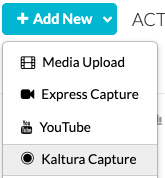
- Click +Add New. (Note: if you don't see the +Add New button, you may have to make your browser window larger.)
- From the drop down menu, choose Kaltura Capture.
You will be presented with a page providing links for downloading software
4. Click on Download for Windows or Download for Mac and then follow the instructions appropriate to your platform in Kaltura Capture-- Installing and Launching the Application. (For additional help installing Kaltura Capture, watch How to Install the Kaltura Capture Application.)
Note: If you encounter a permissions error while installing Kaltura Capture, contact your department's IT professional/administrator or the ITCS Service Desk for support.
Recording with Kaltura Capture
- Go to My Media in your bCourses site or MediaSpace.
- Click +Add New. (Note: if you don't see the +Add New button, you may have to make your browser window larger.)
- From the drop down menu, choose Kaltura Capture.
- If prompted to "Open KalturaCapture?", select "Open KalturaCapture".
Kaltura Capture lets you record video and audio from multiple sources. To select sources, in the "Kaltura Capture" window, click each of the three drop-down menus and choose the cameras, screens, or microphones you wish to record:
To turn a source on or off, click the large blue icon corresponding to that source, and the icon will turn gray and have a slash going through it to indicate that it is turned off.
Click the red button to begin recording. A countdown should begin in the middle of the screen, and a window with a timer should appear in the bottom right corner of the screen. When the countdown ends and the timer begins running, the recording has started.
To pause the recording, click the red button with the pause symbol on it. Resume the recording by clicking the red button again. To end the recording, click the gray square next to the timer and select "Yes, Stop It" from the pop up menu.
After the recording has ended, a window will pop up with the options to replay the video, change the title, and add a description and tags to your recording.
The user has the option of deleting the recording, saving and uploading the recording, or saving the recording.
Saving and uploading the recording saves it to the user’s local storage and uploads the video to My Media. Saving the recording only saves the video to the user’s local storage, but it can be uploaded to My Media at a later time. Click the corresponding button to save, upload, or delete your recording.
Note: Kaltura Capture has a maximum recording time of two hours. If you are recording and reach the two-hour mark, Kaltura Capture will end the recording.
For more detailed instructions, please see our DLS Kaltura How-To and Best Practices Guide and the vendor's Kaltura Capture User Guide.