Smart Recording
When using this feature, Zoom AI provides video and audio recordings for meetings. By default, this feature is turned off.
Configure settings for Smart Recording on the Zoom Web Portal at https://berkeley.zoom.us/profile/setting → AI Companion → Recording.
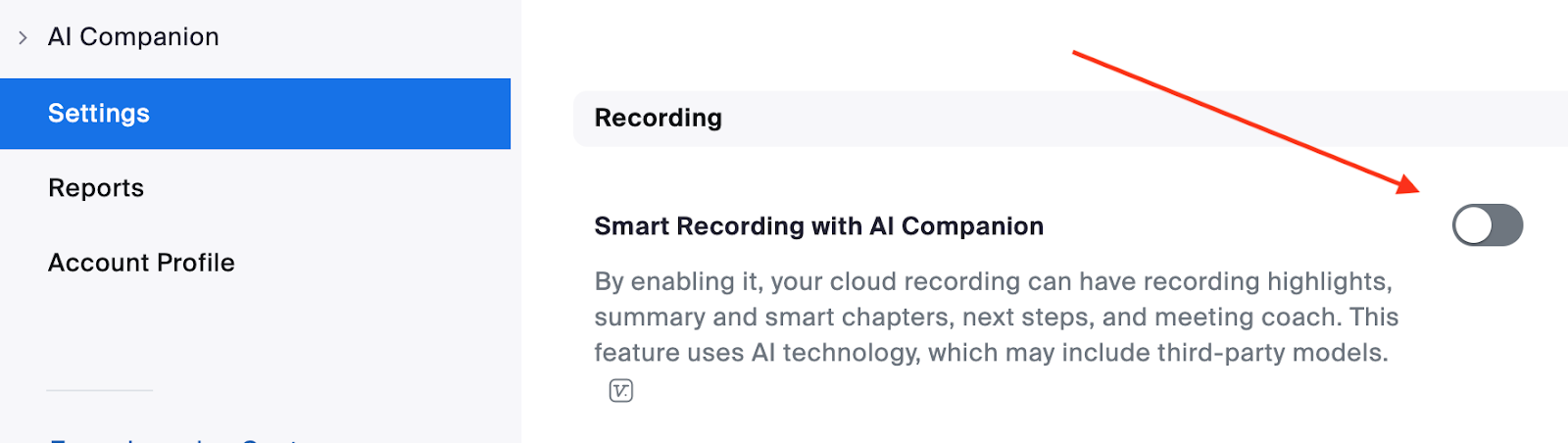
Enabling Cloud Recording to use Smart Recording features
If you are prompted to turn on “Cloud Recording,”
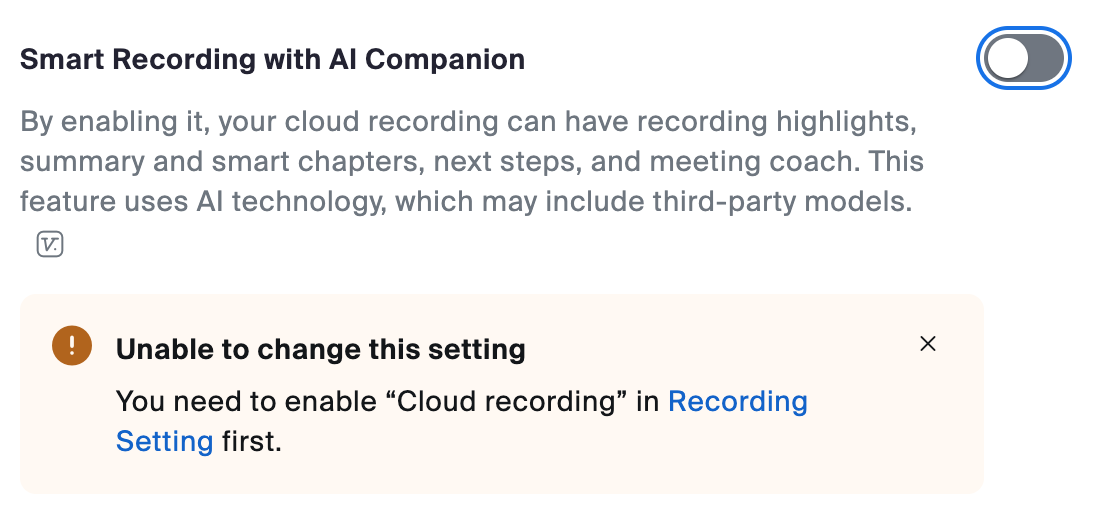
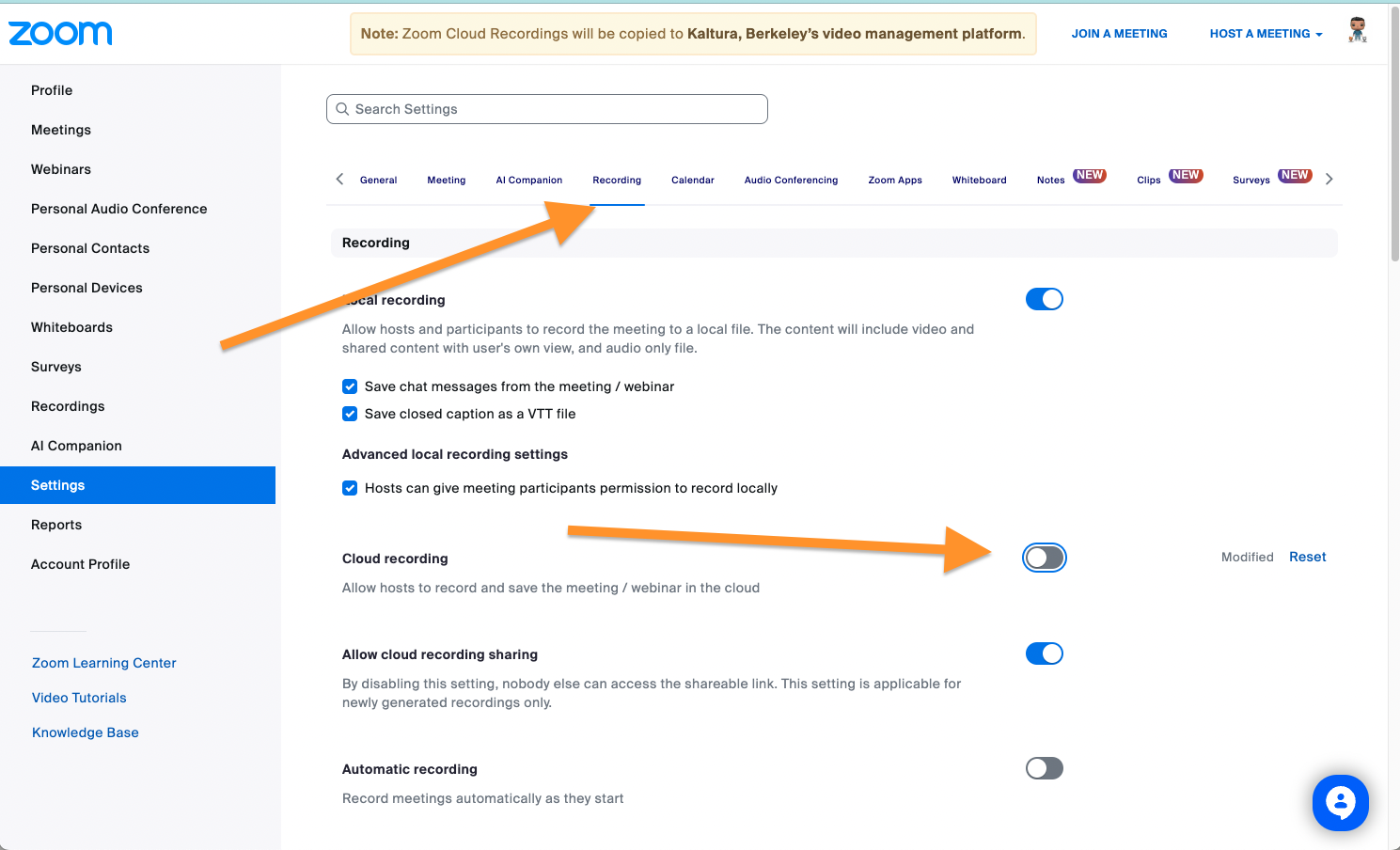
navigate to the Zoom Web Portal at https://berkeley.zoom.us/profile/setting → AI Companion → Recording to enable “Cloud Recording”. You will also need to enable “Create Audio Transcript”.
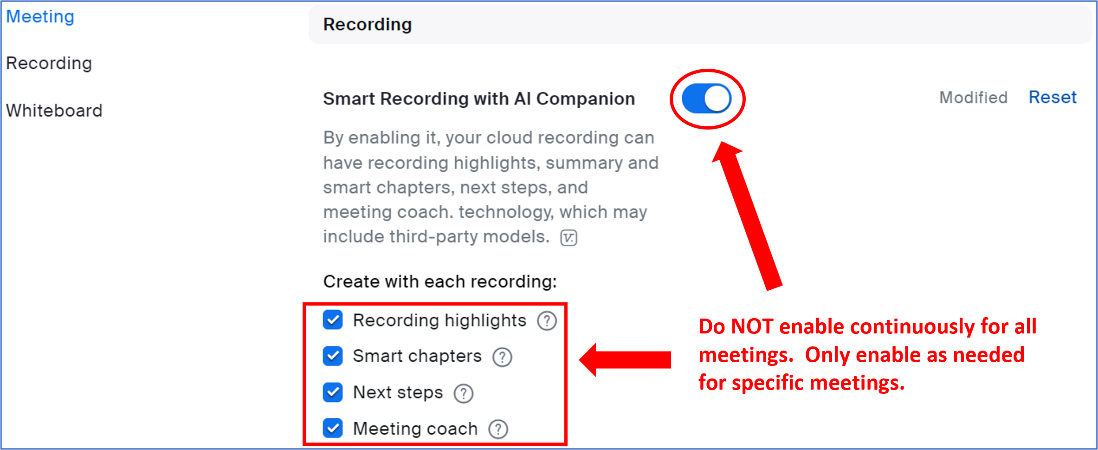
Once enabled, your Smart Recording can have recording highlights, summary and smart chapters, next steps, and meeting coach options.
General Recommendations
Before the meeting
It is advised that you DO NOT enable Smart Recording features for all your meeting recordings. Instead, only enable one or more of the Smart Recording features ahead of specific meetings where the additional content may add value for you or those with whom you intend to share your meeting recording – then disable the features until needed again.
Also consult the campus data classification standard.
During the meeting
-
- Inform participants that the meeting will be recorded before launching the recording feature.
- Start recording only when the official meeting agenda begins, and all attendees are present.
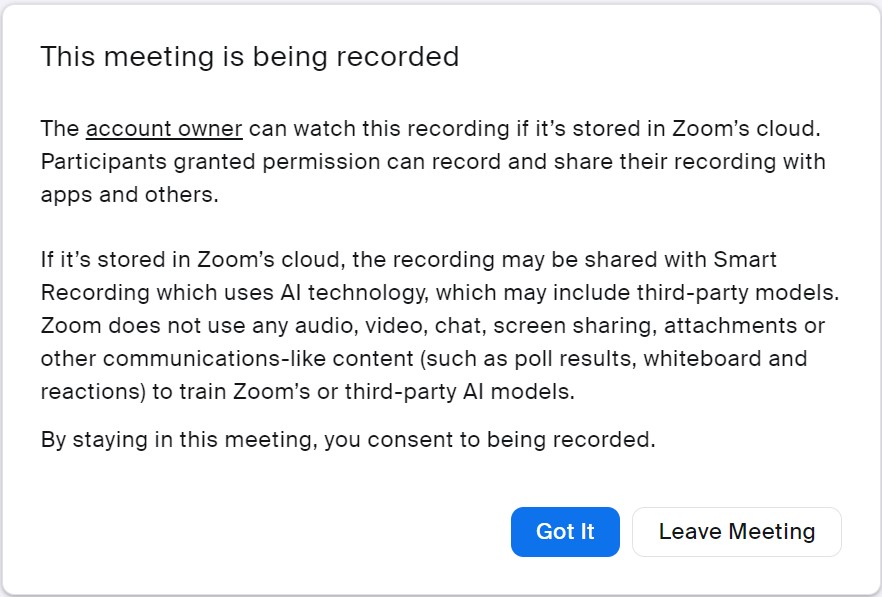
- When recording a meeting, individuals will be asked for consent. Individuals may opt out of recorded meetings, but doing so will remove them from the meeting altogether. Ordinarily, the tool should only be used when all attendees are comfortable doing so.
- Inform participants that the meeting will be recorded before launching the recording feature.
After the meeting
Before sharing a meeting recording that includes Smart Recording features, it is essential that you proofread and edit Recording Highlights, Smart Chapters, and/or Next Steps as necessary to ensure accurate and proper AI-generated content.
Additional Questions
For general questions about Zoom AI’s companion, contact Berkeley IT Support at zoom-help@berkeley.edu.
For questions related to information security, reach out to your local Unit Information Security Lead (UISL) or the UCB Information Security Office at security@berkeley.edu.