To embed Kaltura media in Pages, Discussions, Assignments, Announcements and anywhere else in bCourses that uses the Canvas Rich Content Editor, follow the steps below.
Canvas Rich Content Editor
Note to instructors: Kaltura is our recommended platform for sharing video in bCourses to the members of the course site in which the content is embedded. For alternate embedding options appropriate for a course site with a Visibility setting of "Institution" or "Public", see How do I embed video content in bCourses?
Note to students: there is currently a bug which will not allow you to embed Kaltura media in Group Discussions. If your instructor has asked you to embed media in a Group Discussion, you will need to use an alternate method for embedding in bCourses. See How do I embed video content in bCourses?
1. With the Rich Content Editor open, do one of the following:
If you are an instructor creating course content to be presented to students, click Embed Kaltura Media.
If you are a student, submitting video for an Assignment, Quiz or other graded activity, click the Apps icon and then select Kaltura Video Submission. (Note: If you do not see the Apps icon at first, click the 3 vertical dots to show all icons.)
The first time you click the Apps icon, you'll see a dialog in which you'll need to scroll down to find Kaltura Video Submission. After you do it once, you'll find Kaltura Video Submission in the dropdown that appears as soon as you click the Apps icon. This provides your instructor with a timestamped non-editable copy of the original media.
2. From the window that opens up on the page, if the media you want to embed is already in your My Media or the Media Gallery, click on the appropriate tab, My Media or Media Gallery.
Note to instructors: If you have a bCourses role of Teacher, TA, Lead TA, or Owner and there are Playlists in the course site's Media Gallery, you can also embed playlists. Click the Media Gallery Playlists tab to get a list of playlists that you can embed.
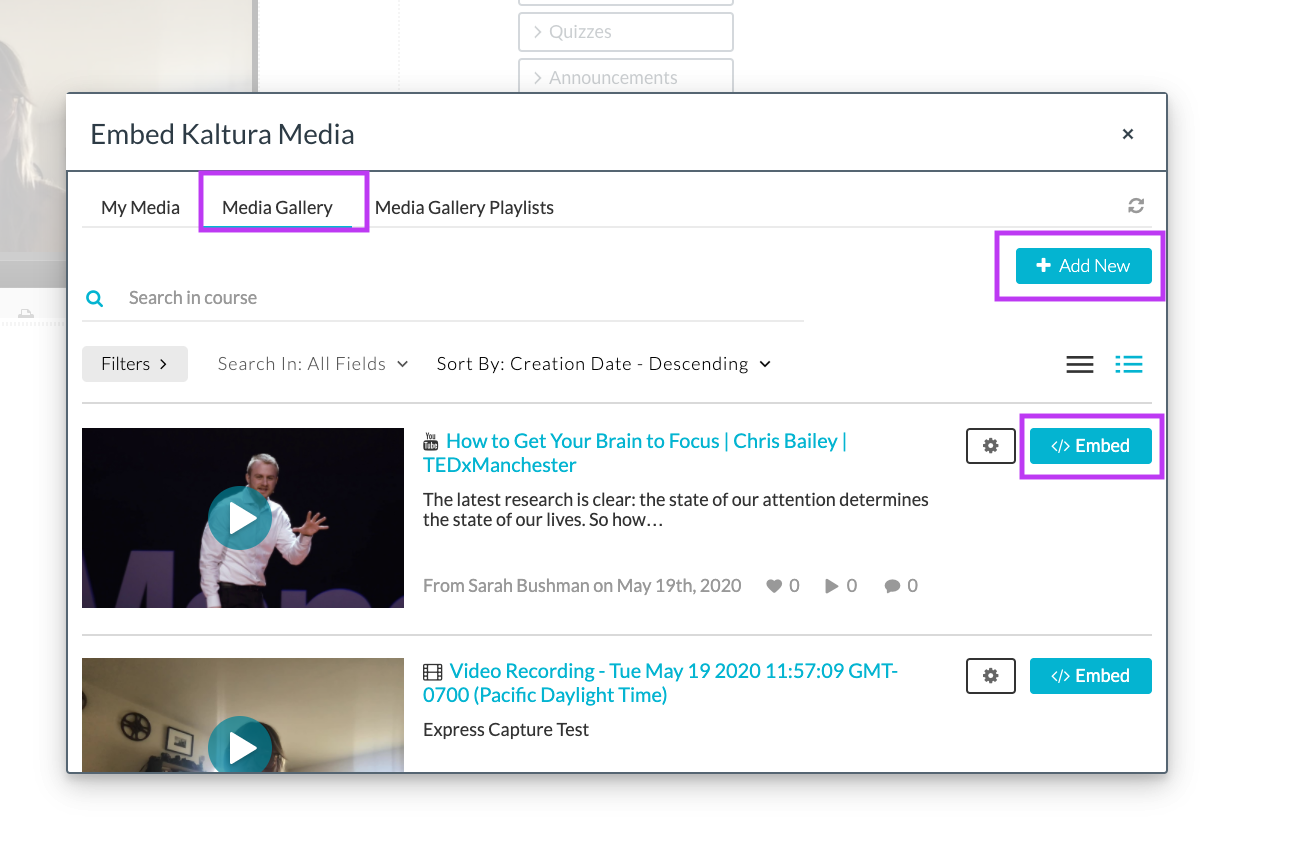
(If the media you want to embed isn't already in My Media or Media Gallery or Media Gallery Playlists, you can select Add New and add media to your My Media or Media Gallery using the options provided: Media Upload, Express Capture, YouTube, Kaltura Capture. For more help on uploading or creating media, see “How do I upload existing media files to My Media” and “How do I to get started using Kaltura Capture to record videos?”.)
3. Do one of the following:
- Click the Embed button next to the media you want to embed. The media will be embedded on the page using default settings.
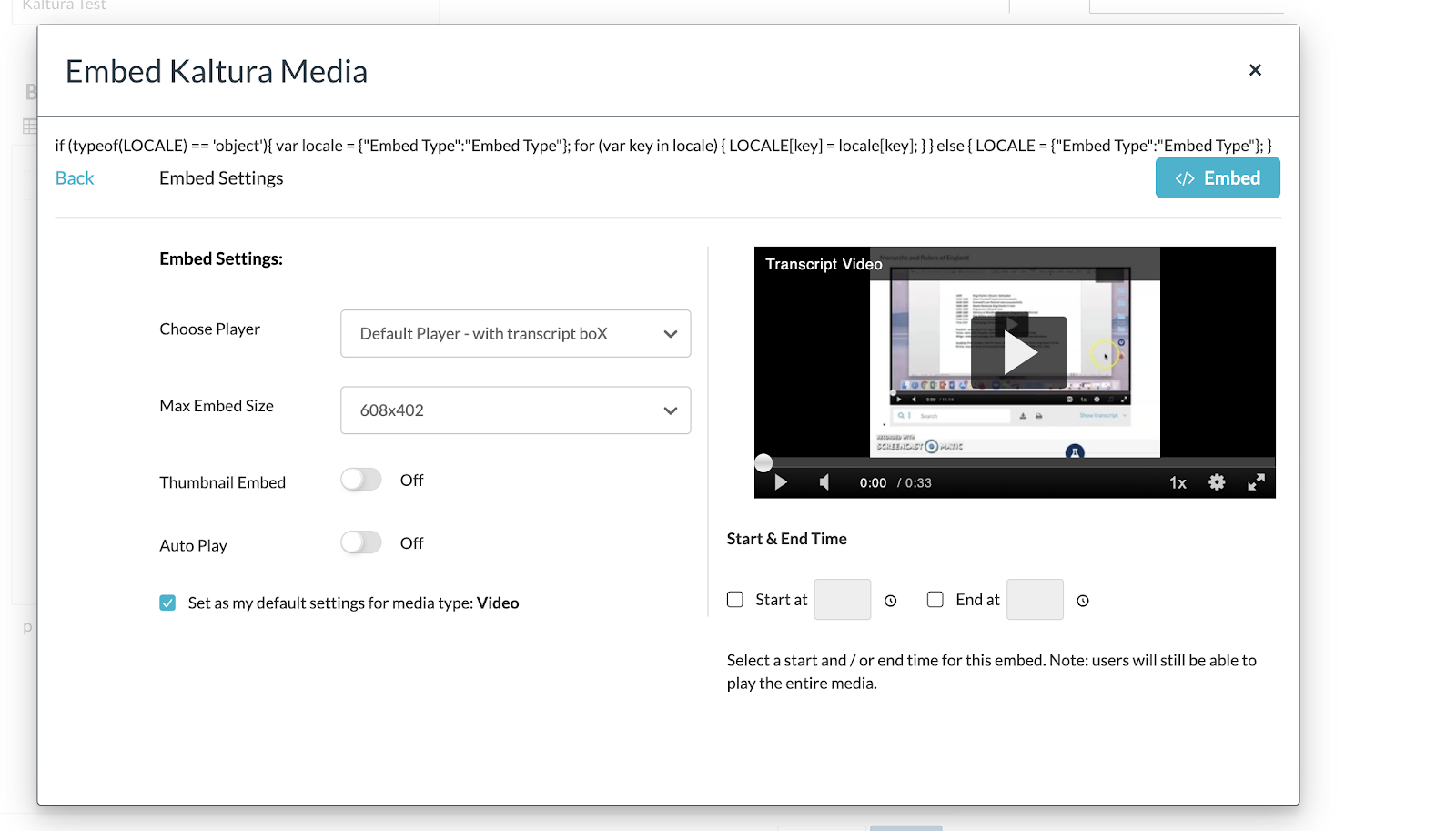
- If you'd like to have more control over how your video appears, click the settings button for the media item (gear icon to the left of the Embed button). You will then be able to select different players (e.g. whether it displays a transcript or not) and player sizes and a few other options. Click the Embed button in the upper right of the window when done. The media will be embedded on the page with the settings you have selected.
- If you'd like a size for your video other than what is presented to you as an option in the Embed Settings, you may adjust the size of the embedded video using HTML. Refer to How do I adjust the size of an embedded Kaltura video using HTML? for instructions.
Additional note to instructors embedding media in an Announcement: Kaltura Media embedded in a bCourses Announcements is stripped from the version of the Announcement that is sent via email. The recipient can always click through the link in the email to view the full announcement as it was intended to be seen in their browser, but unfortunately, there is no indication that they are not seeing the full message in their email. If you have embedded media in an Announcement that you expect students will view as email (rather than opening the Announcement in bCourses), make sure to state that they should click "view announcement" to view the full message in their web browser.