The following article only relates to services represented on the Incident Management Tiger Team.
One goal of our incident management process reads: we satisfy customers and users with the way we handle incidents. To measure our success in doing this, we invite our customers to complete a survey upon closing a submitted incident. For returned surveys with dissatisfied satisfaction ratings (1 or 2), we have committed to reaching out to the customer to gather feedback on why they were dissatisfied and what we could have been done to make the service experience better.
Each service team has at least one staff assigned to reach out to dissatisfied customers. To enable these staff, we have automatically generated a TASK for any survey results with a dissatisfied satisfaction ratings (1 or 2). The TASK will be UNASSIGNED and will be sent to the relevant assignment group. It can be found in the My Groups Work - Unassigned or the My Groups Work queue. You can find these queues by typing my group in the left navigation bar search box.

These tasks are called Survey Response Follow Up tasks and start with the characters SRF. If running reports on these records, select the Survey Response Follow Up table.

After opening an SRF task, one will see the SRF task number followed by the survey record number starting with AINST (assessment instance). By selecting the information button to the right of the survey record number, additional details of the survey record can be found: most importantly the incident number that the survey was in response to and Open Record button that allows the staff member to see the survey itself.
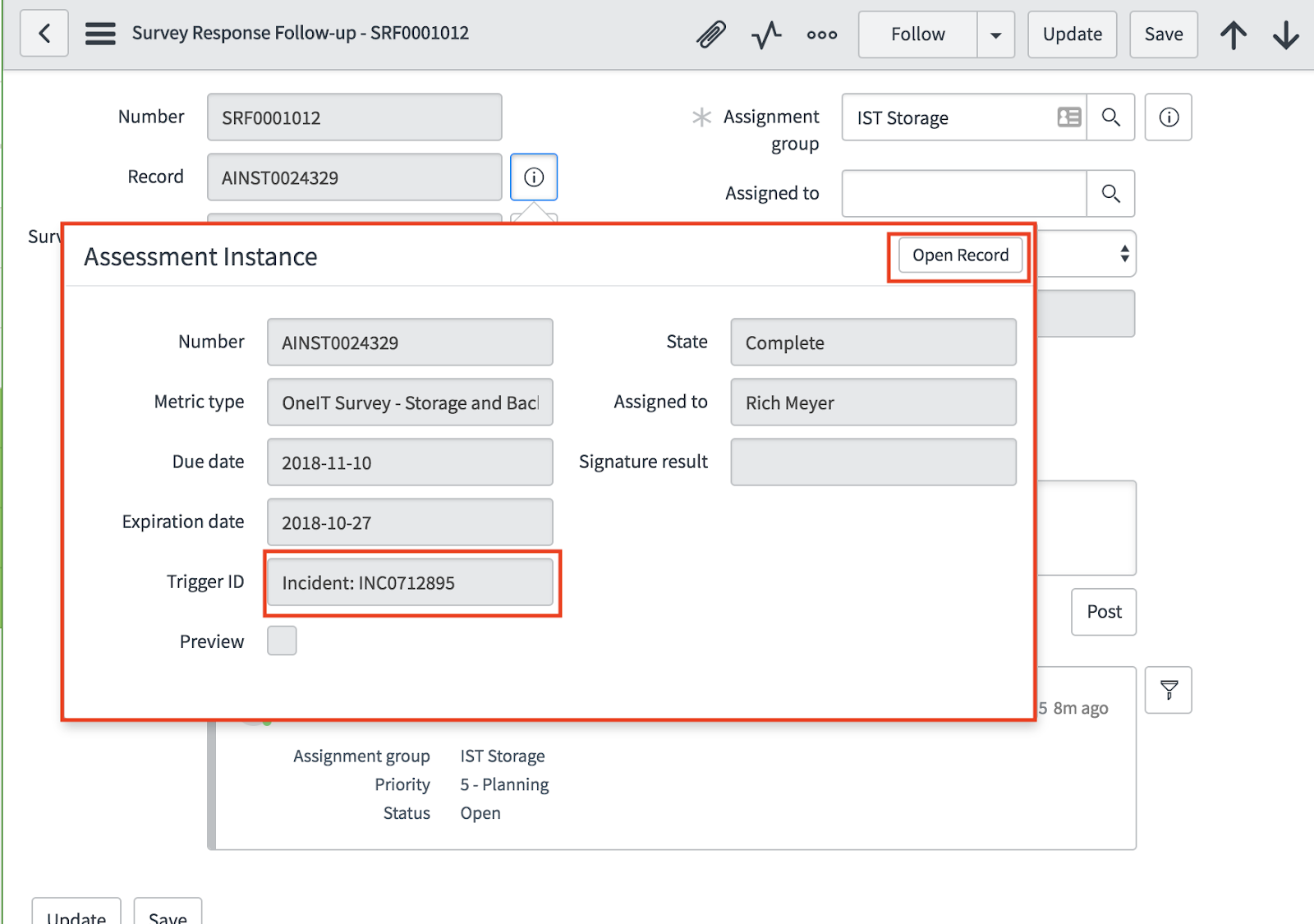
By clicking the Open Record button, staff can see the customer’s actual survey response and access a link to the incident that the survey was in response to. Collectively, these data should provide the necessary context to reach out to the customer.

After opening an SRF task, please take the following steps:
- Assigned To: Assign it to yourself if your are the staff assigned to customer outreach.
- Remember to Save often!
- Comments:
- Capture the dates and actions taken with the customer. It is important to note that you may not reach the customer on the first attempt, so noting when you left a voicemail or sent an email will be helpful data.
- You can post more than one comment.
- Customers will NOT receive notifications on these comments, but the data is not hidden from ITIL users running a report.
- Your supervisors will be receiving reports.
- Remember to Save often!
- Activity: All posted activity will show up in the Activity log.
- Select Closed Complete upon completion of outreach.
- Final Comment Post: After selecting closed complete, the task will require a final comment post.
- The Resolved On field will be automatically populated with a timestamp after you select Closed Complete.
- Remember to Save often!
- After closing the the SRF task, the task will leave your My Work queues.


