2.0 - Updated on 2025-12-18 by Luca Giles
1.0 - Authored on 2022-02-24 by Casey Hennig
Follow these instructions to remove or forget a wireless network on your devices:
Windows 10
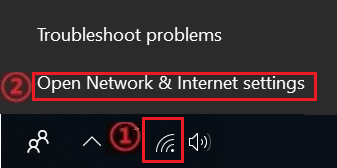
- Right-click the Network icon on the lower right corner of the screen (or click the Wi-Fi icon, select the network, and select disconnect).
- Click Network & Internet settings.
- Click Wi-Fi and then click Manage known networks.
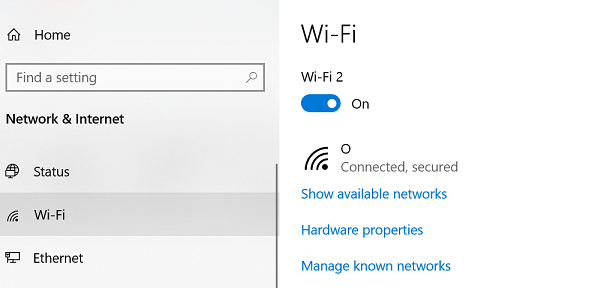
- Click the network to remove or delete under the Manage known networks list, then click Forget.
Windows 8.1
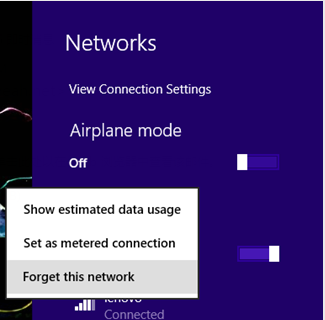
- Click the wireless icon in the system tray, then right-click the wireless network to remove, click Forget this network.
Windows 7
- Open Network and Sharing Center, select Manage wireless networks on the left panel.
- Right-click the network that is not connecting properly or the network to remove, and select Remove network. Confirm the right password when connecting.
- Choose Apple menu > System Preferences, then click Network.
- Select Wi-Fi in the list on the left.
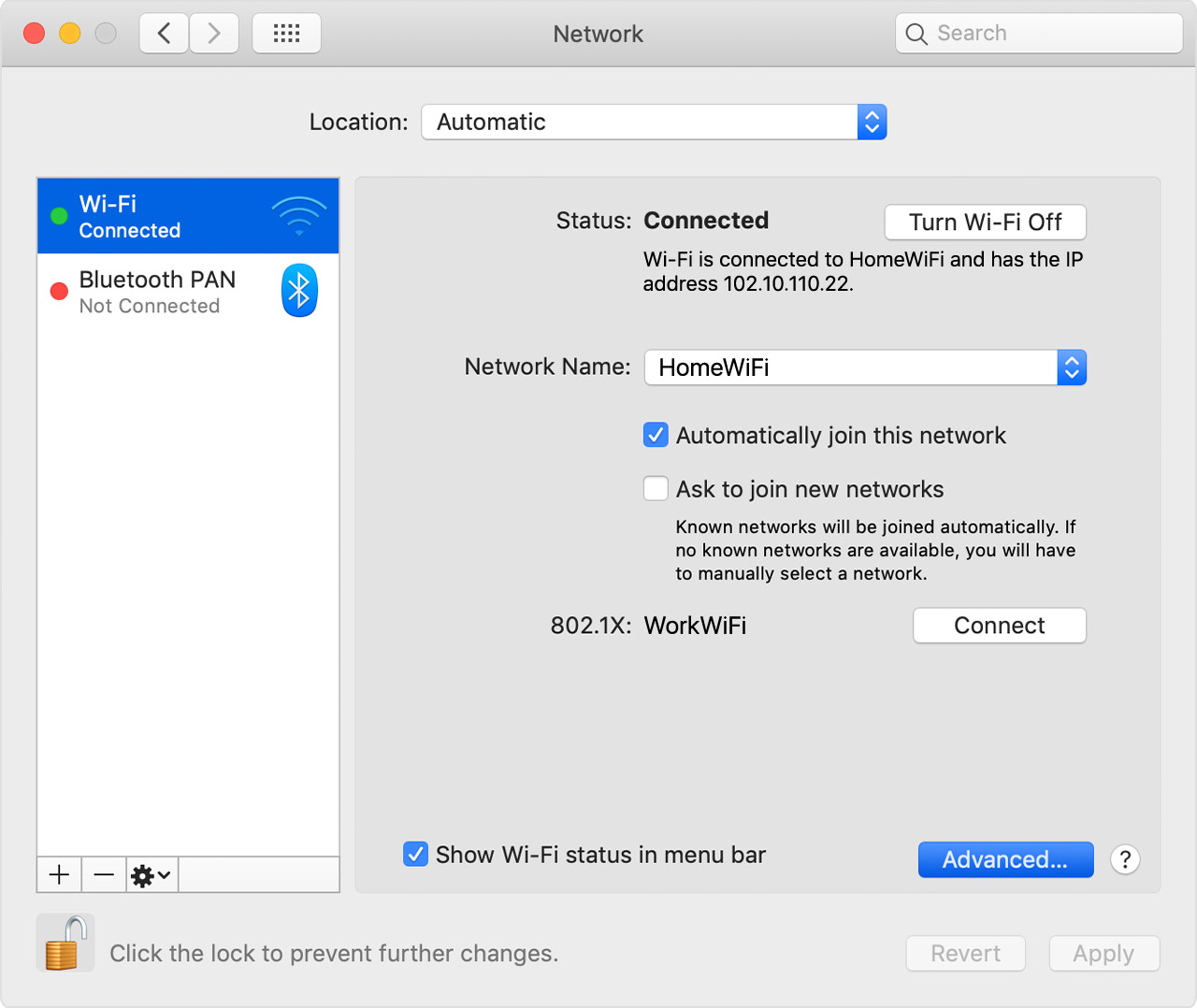
- Click the Advanced button.
- The Wi-Fi pane shows a Preferred Networks list. Select the Wi-Fi network that you want your Mac to forget.
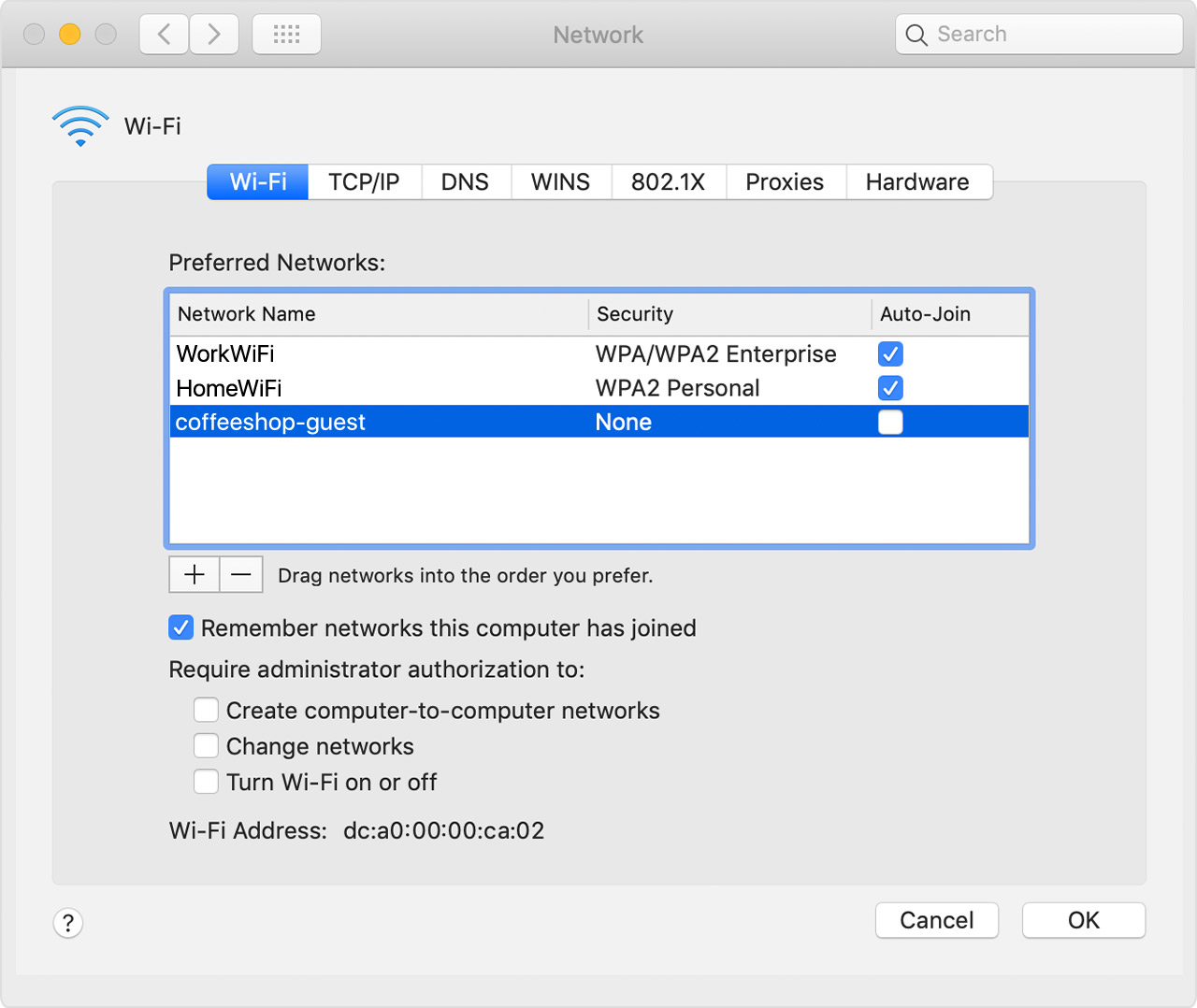
- Click the remove button (–) beneath the list. If you're asked to confirm, click Remove.
- Click OK.
- Click Apply.
Forget a network on your iPhone, iPad, or iPod touch:
- Go to Settings > Wi-Fi.
- Tap
 next to the Wi-Fi network that you want your device to forget.
- Tap Forget This Network, then tap Forget to confirm.
Forget a network on your Android Device:
- Open Settings on your device, and tap on the WiFI icon to access WiFi network options.

- Tap and hold the WiFi network you want to delete, then select Forget Network from the menu that appears.