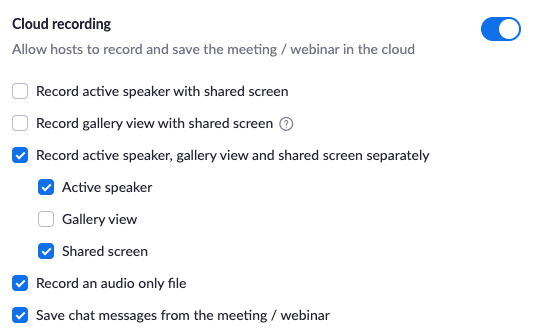
Zoom videos copied automatically to Kaltura via the Zoom to Kaltura integration will be either single-stream or dual-stream recordings, depending on your Zoom settings.
If you want a regular, single-stream recording in Kaltura:
This is an example of a single-stream recording in Kaltura.
Log into your Zoom recording settings with your CalNet access and select “Record active speaker with shared screen.” Do NOT select “Record active speaker, gallery view and shared screen separately.” Make sure to click Save.
If you want a dual-stream recording in Kaltura:
This is an example of dual-stream recording in Kaltura. Viewers get a choice to switch between streams or watch side-by-side.
Log into your Zoom recording settings with your CalNet access and select “Record active speaker, gallery view and shared screen separately.” Under that, select “Active speaker”, and “Shared screen.” Make sure to click Save.