My Media is your personal media repository, no matter where you access it from. Content in My Media is private to you unless you publish that content.
Specific information about uploading Zoom recordings can be found in How can I share my Zoom Recordings in bCourses using Kaltura?
To upload media to My Media:
- Go to My Media.
- You will find My Media in the global navigation (vertical navigation bar on the left) of bCourses.
- My Media also appears in MediaSpace, typically at the top of the page.
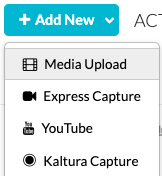
- Click the +Add New button and select Media Upload from the dropdown menu. (If you are using MediaSpace, instead click +Create in the upper right corner, and then select Upload.)
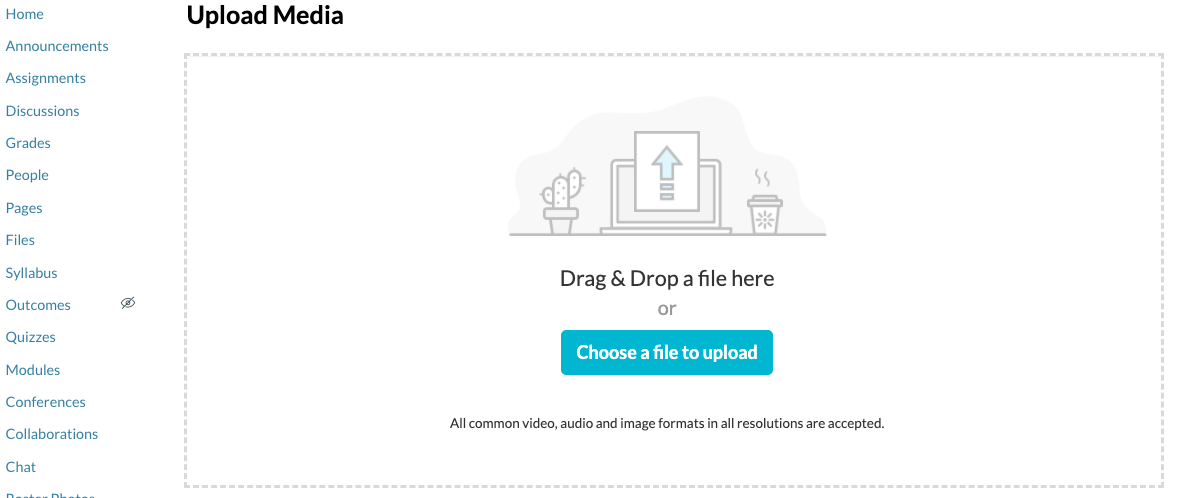
The Upload Media page is displayed. - Drag in the media file into the window from your computer's desktop OR click Choose a file to upload and use your computer's file chooser to locate the media file.
- See What file formats can be uploaded to Kaltura? for a list of supported file formats.
- While the file is uploading, you can change the name of the media, enter a description and tags about the media, change the publishing schedule, and add collaborators on the Upload Media page. Click the Save button at the bottom of the window to save the new details. You will still be able to edit these details later.
- Eventually you should see “Upload Completed!” at the top of the window.
The media will now be available in your My Media
If you'd like to watch a video showing how to upload your media files, see How to Upload Media.