SPA's CalGroups Page
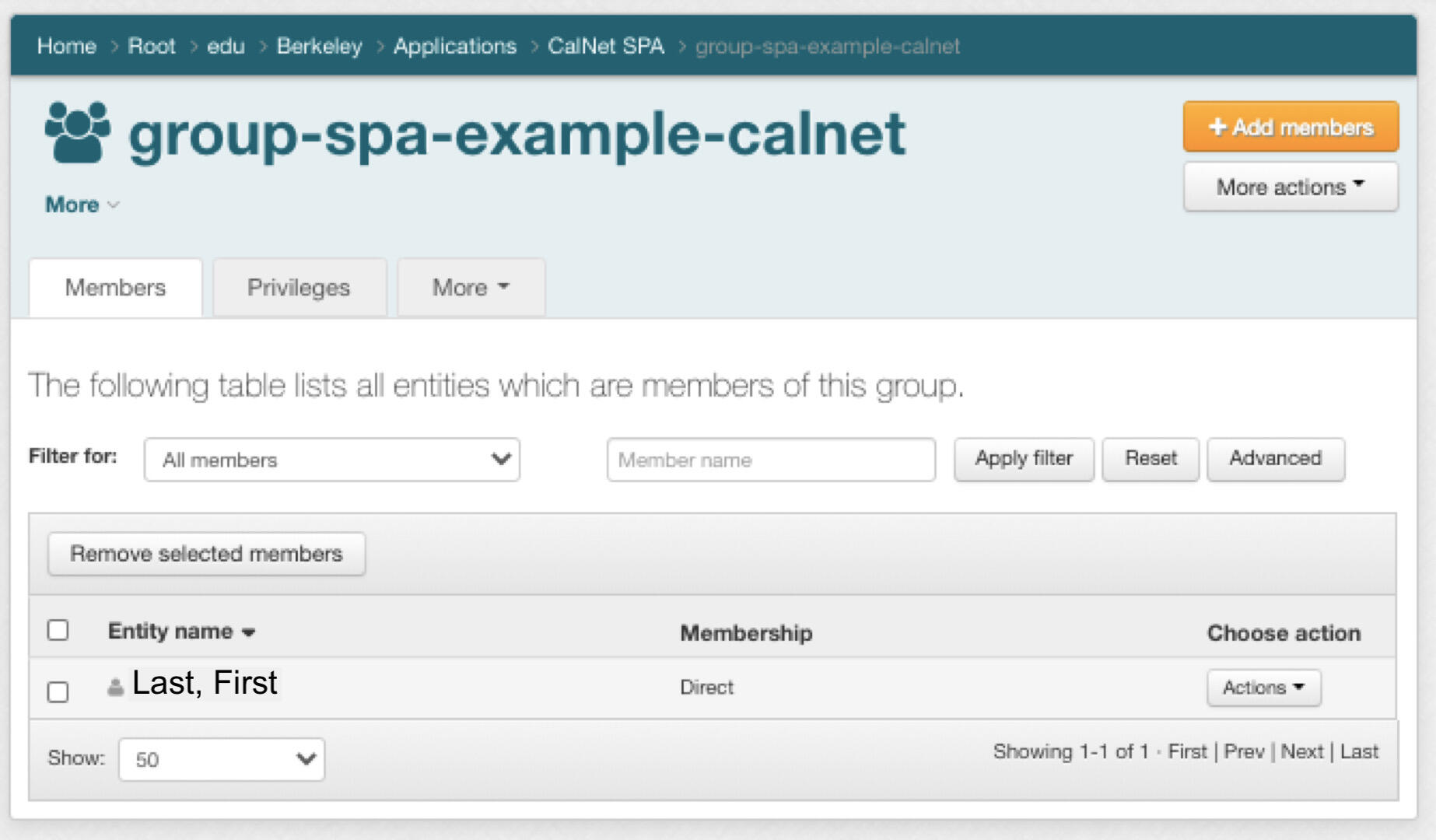
The screen shot below shows what the SPA CalGroups page looks like with a single user.
How to Add Members Individually
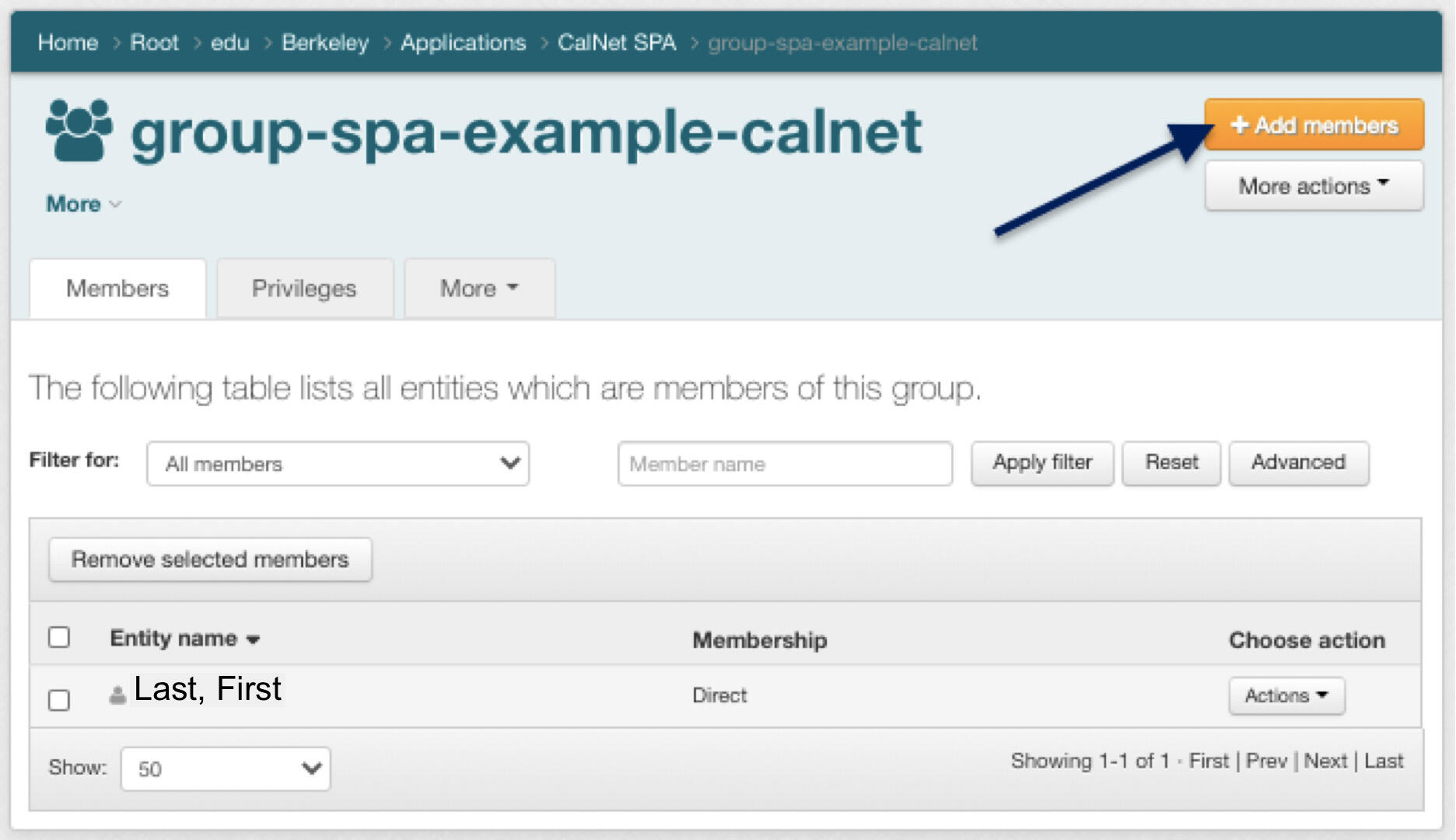
- Click on the orange "Add Members" button in the upper right corner of the SPA page.
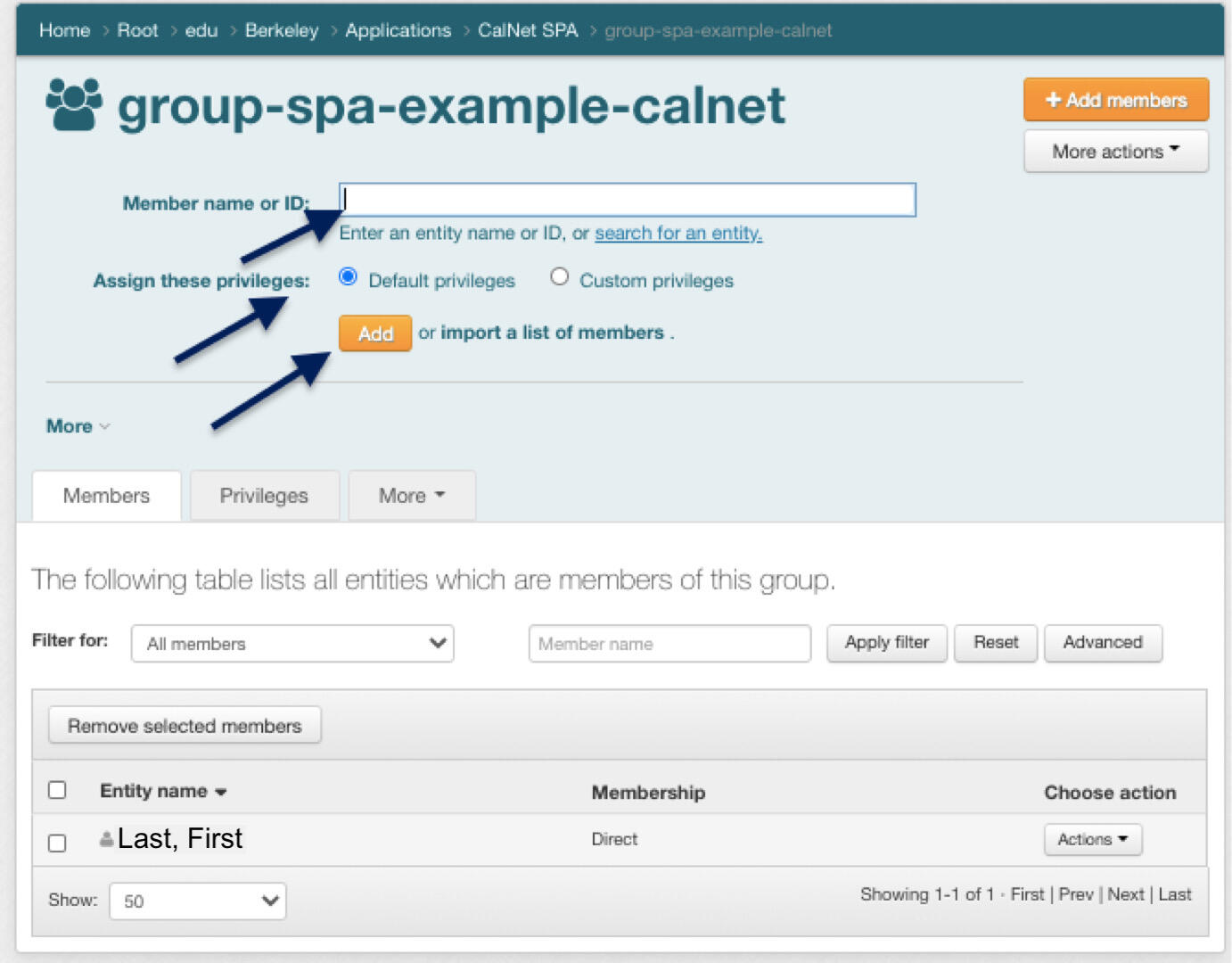
- Search for the member name by name or UID.
- For "Assign Privileges", select "Default Privileges". Default privileges include update permissions.
- Then click the "Add" button.
Anyone you add to a SPA can automatically add or remove other members.
How to Add Members by Batch
- Click on the orange "Add Members" button in the upper right corner.
- Click on the "import a list of members" link.

- For "How to Add Members", select "Copy/Paste a list of Member IDs". And enter a list of member UIDs.
- Click on the "Validate Entries".
- You can mark the checkbox "Replace existing members?" if you want your list of members to replace current members.
- Click on the "Add Members" button to submit your import request.
- On the import results page, click on the "OK" button to finish.
How to Remove Members Individually
Mark the checkbox for the member and under "Action", select "Revoke Membership".

How to Remove Multiple Members
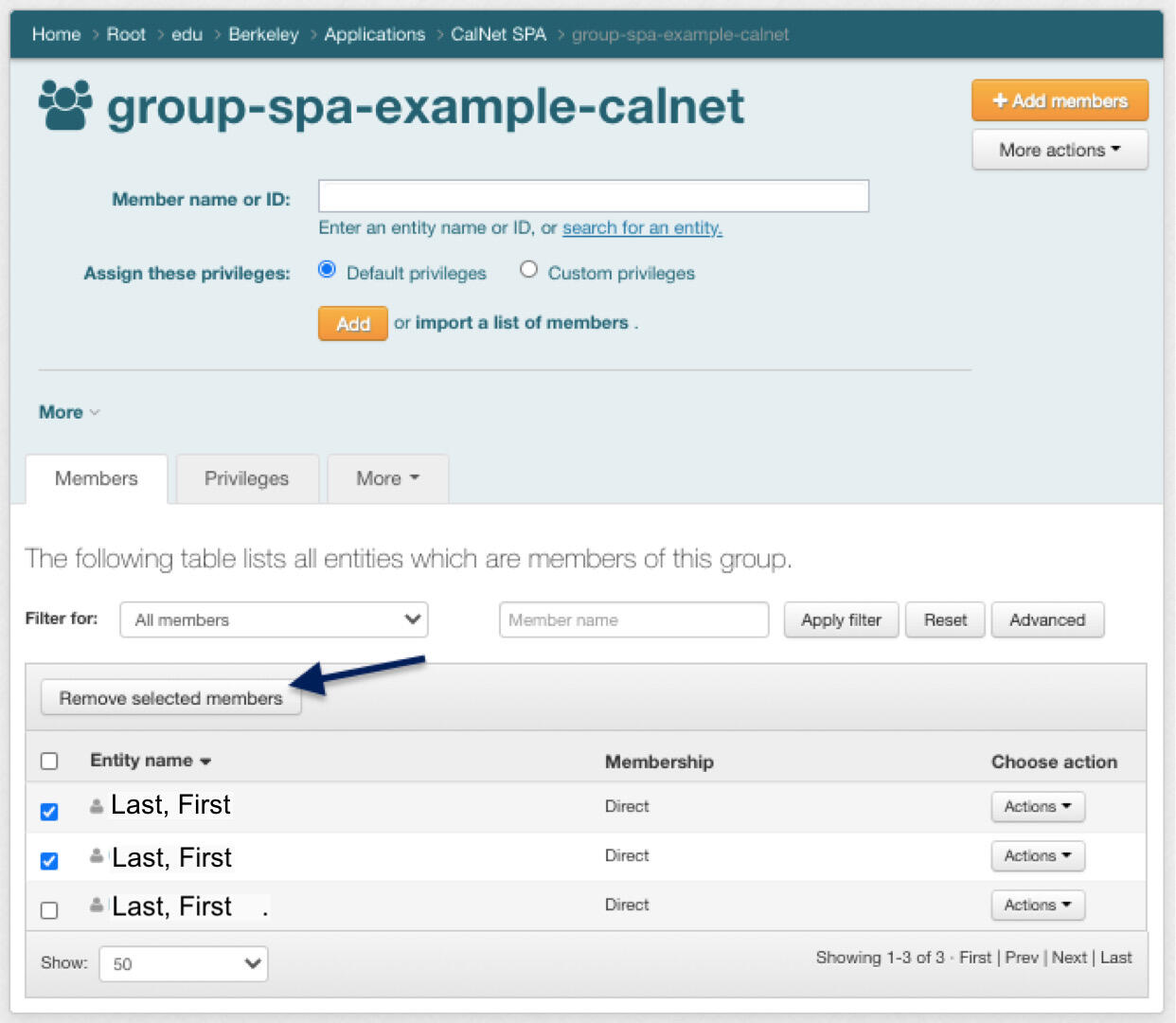
Mark the checkbox for each member and click on the "Remove selected members" button above.
Direct Member Management Tips
If you are unable to access the SPA Admin App, use CalGroups.berkeley.edu to edit SPA direct membership.
The SPA creator is the first member of the SPA and has update permissions by default. Any user added as a Direct Member will be able to add and delete other members.
Please do not remove yourself and all Direct Members from a SPA, as you will no longer be able to manage the SPA. If you remove all members from your SPA, you must email your UID to calnet@berkeley.edu to have CalNet add you back. We recommend that each SPA has more than one Direct Member for this reason.
Department managers have the authority to modify membership and/or disable a SPA at any time, and manage the content of the account. Department Managers can email calnet-admin@berkeley.edu to transfer SPAs to different departments or modify SPA membership.
Contact Us
To create SPAs and manage membership, use the Special Purpose Accounts Admin App.
If you have any questions regarding SPA CalNet IDs, contact itcsshelp@berkeley.edu.