What to do before re-imaging a Perceptive Content machine
Background
Sometimes it is necessary to re-image machines that have Perceptive Content (formerly ImageNow) installed. End users personalize their Perceptive Content settings and it is important to retain their settings when their machine is re-imaged.
Solution
To avoid losing the settings users currently have with the system, please follow this procedure before the actual re-image occurs. This procedure should be done by technical support personnel such as CSS-IT or SAIT.
-
Capture profile settings (inscan.xml file)
1. Copy and save the inscan.xml file that should be found under users\username\appdata\roaming\microsoft windows or similar path
-
In case the path is different and you find several of these files, please copy the latest one
-
2. Send the Imagine team a copy of this file, just in case we need to verify the settings after the machine has been reimaged
-
FYI, this file contains the settings for the system on how the user captures documents
-
Note that only scanner machines include two xml files, inscan and indevice
Send the file(s) to imaginehelp@lists.berkeleley.edu and make sure to mention to what machine and user the file belongs to
-
Connection profiles
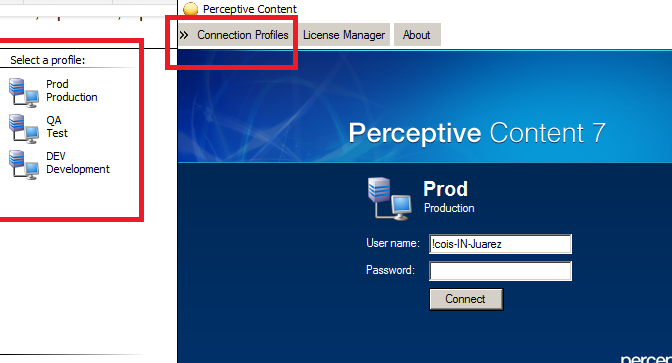
1. Ask users to go to Perceptive Content and, before they log in, check the Connection Profiles they currently use, see below
2. They might only use Prod, but they might also use QA.
3. Re-imaging their machine will wipe out these connection profiles, so, you will have to re-create them. You can find instructions on how to re-create them on this wiki page: https://wikihub.berkeley.edu/display/istds/Imagine+System+Administration
-
During re-imaging or re-install make sure to:
1. Install Perceptive Content as the local admin of this machine
2. Check the BI and ImageNow printer options so that this functionality is installed
- 3. Not to test your ImageNow client while creating your image since this is will create a in_hwfp.machinename file. If you don’t remove this file before creating the image you will then deploy that file with the image each time you image a new machine. That new machine will then not be able to connect because the in_hwfp.machinename file is not unique to the newly imaged machine.
- However, if you tested the client while creating the image and as a result the user can't login due to the error "Failed to read file (C:\Program Files(x86)\ImageNow\etc\in_
hwfp.machinename)" you will have to either a) delete the file, or, b) give Read and Write permissions to the parent folder where the file resides.
When re-imaging a scanner machine
If the machine is connected to a scanner, make sure to
a) Locate the scanner drivers and identify their version number prior to re-imaging the machine in case the drivers are needed after re-imaging is completed. In this case, the drivers would need to be re-installed by technical support personnel such as CSS-IT or SAIT.