Table of Contents
Opportunity
Before you leave UC Berkeley, it is your responsibility to ensure campus does not lose access to important content and data. Additionally, you must take action to retain access to your personal content in your @berkeley account.
- If you stored content and data on Google Drive that you shared with others, unless you take the steps below, the content will be lost to campus after you leave even if the people you shared it with still need it. Read more about preventing the loss of data or files.
- If you have decided not to opt-in to an Alumni account or if you have opted-in to an Alumni account and have more than 5 GB of personal content in Google that you want to retain access to, you will have to move it to another storage location.
What to do
First: transfer ownership of content you have shared
- Find and review the content you have shared.
- Transfer ownership of any shared content that someone on campus might need for the future.
See below for instructions on how to find, review and transfer ownership of shared content.
Second: delete content neither you nor campus will need in the future
Since your alumni account can only store 5 GB or less, including email, delete any content neither you nor campus needs.
This page provides guidelines for how to do this quickly.
Third: move content to a personal storage location, e.g. your personal Gmail account
For any content that you want to keep that is not needed by campus, and that would cause your alumni Google storage to be over 5 GB, move it to a personal storage location such as a personal Gmail account or your personal hard drive.
- Self-Service Content Transfer Options: Using Google Takeout or Takeout Transfer (suitable for lower amounts of content, ideally 50 GB or less)
- Full-Service Content Transfer using VaultMe (Up to $50 subsidy available)
Note: all of these options create and move a copy of your content. You will still need to go back to your berkeley.edu account and transfer ownership or delete your content in order to reduce your storage if you have not already done so.
Instructions on how to transfer ownership
First: Find the content you have shared:
1. Search your Google Drive for content owned by you. Use the advanced search feature and select “Owned by me”.
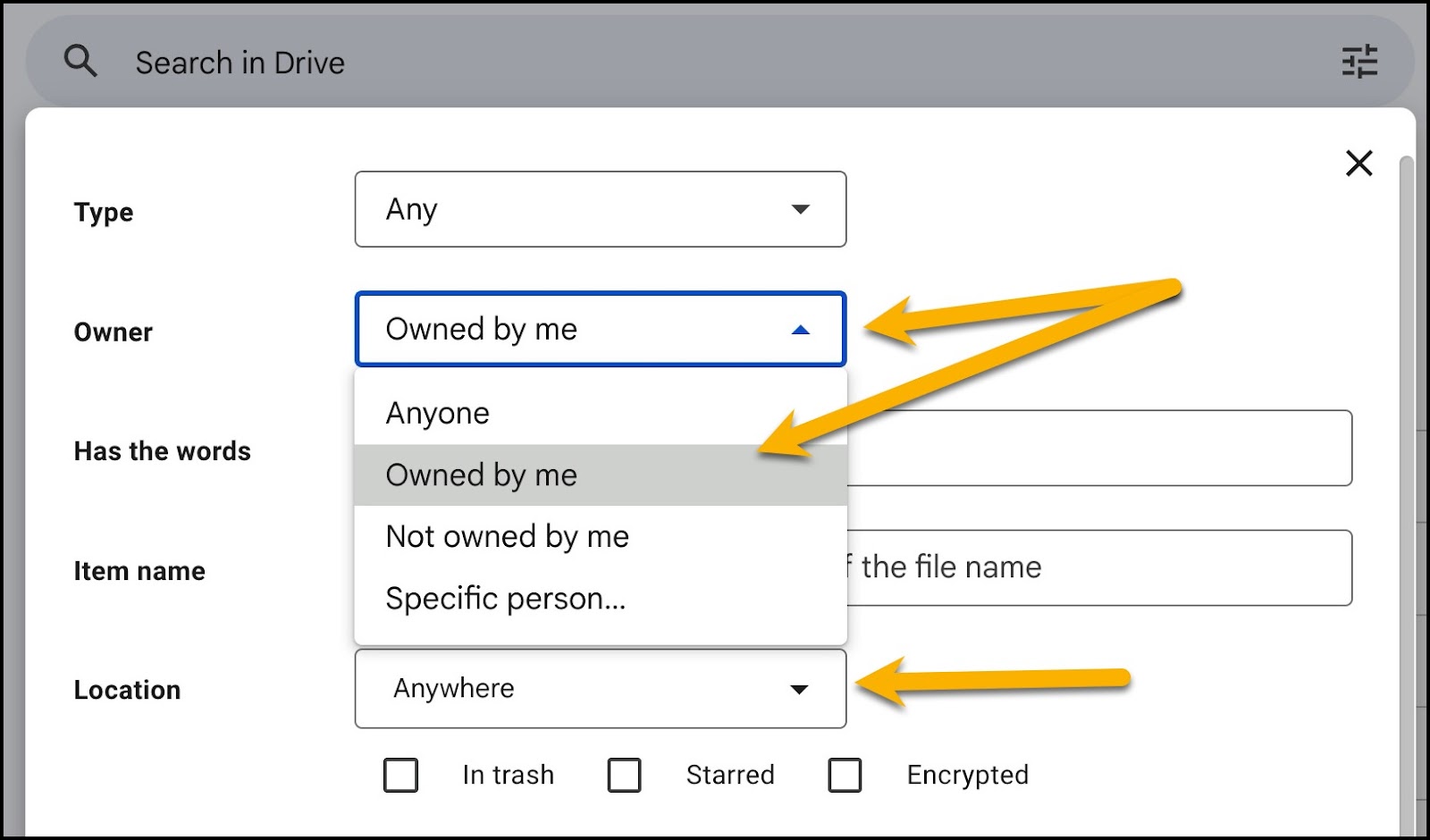
Search for “Owned by me”
Note: If you own content stored in a folder owned by someone else, it does not mean they will retain access. Content you see in a folder that is shared in your My Drive or from your Shared with me might be owned by you and others may lose access to those files.
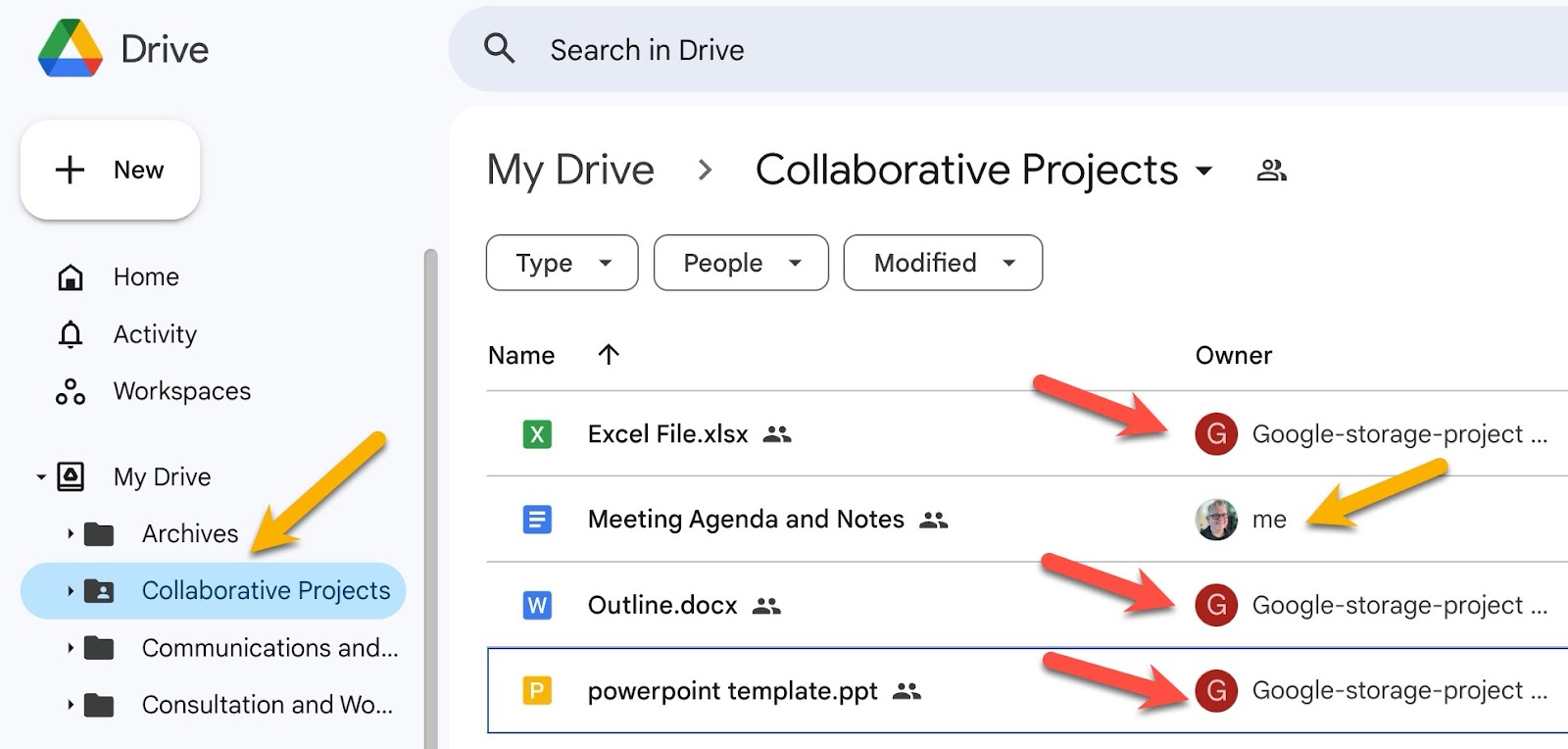
Users can lose access to files you own that you’ve shared, even if stored in a folder not owned by you
Second: Review the search results to identify which files need you to transfer ownership to campus
To review groups of files or folders rather than one file at time, select an item by clicking it once (don’t open the file), and then use the folder path to navigate to related files.
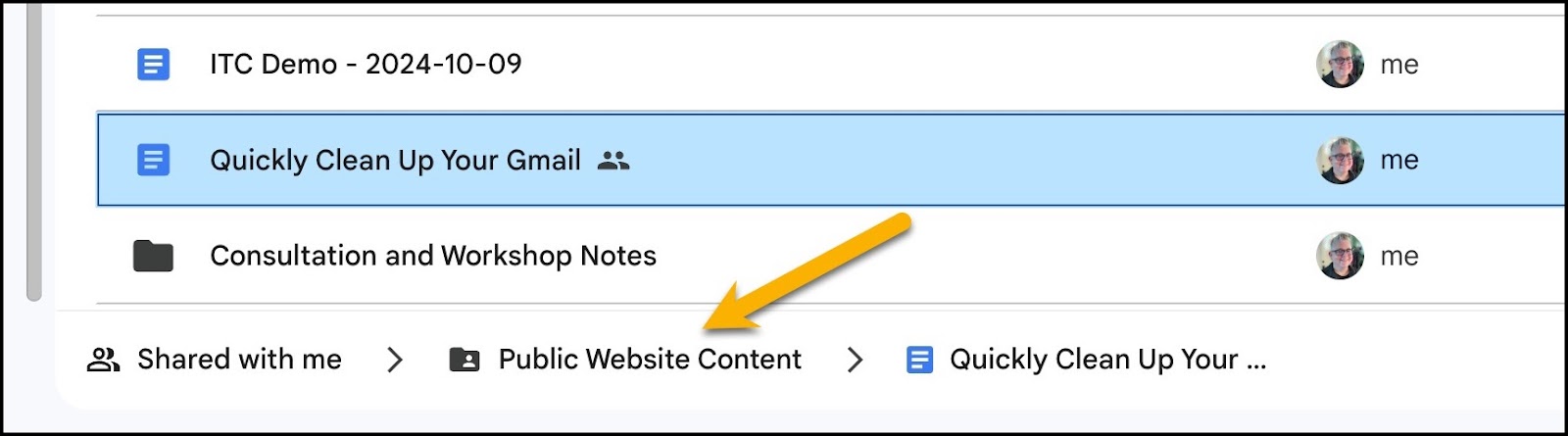
Use the folder path information to quickly review multiple files
Third: Transfer ownership of any shared content that someone on campus might need for the future.
Work with your team, collaborators, faculty, or staff to move your content into a Shared Drive. Moving content you own into a Shared Drive will transfer ownership from you to UC Berkeley and the collaborators in that Shared Drive.
Students cannot create a Shared Drive, so have a faculty or staff member create the Shared Drive. If you cannot work with a Shared Drive, transfer ownership of specific files or folders to others.
Questions?
Contact Student Technology Services:https://studenttech.berkeley.edu/techsupport