What are playlists and who can use them?
Playlists are collections of media that are intended for users to watch in a certain order or that are related in some way.
Playlists can be accessed by all the members of a bCourses site within the Media Gallery in the Playlists tab.
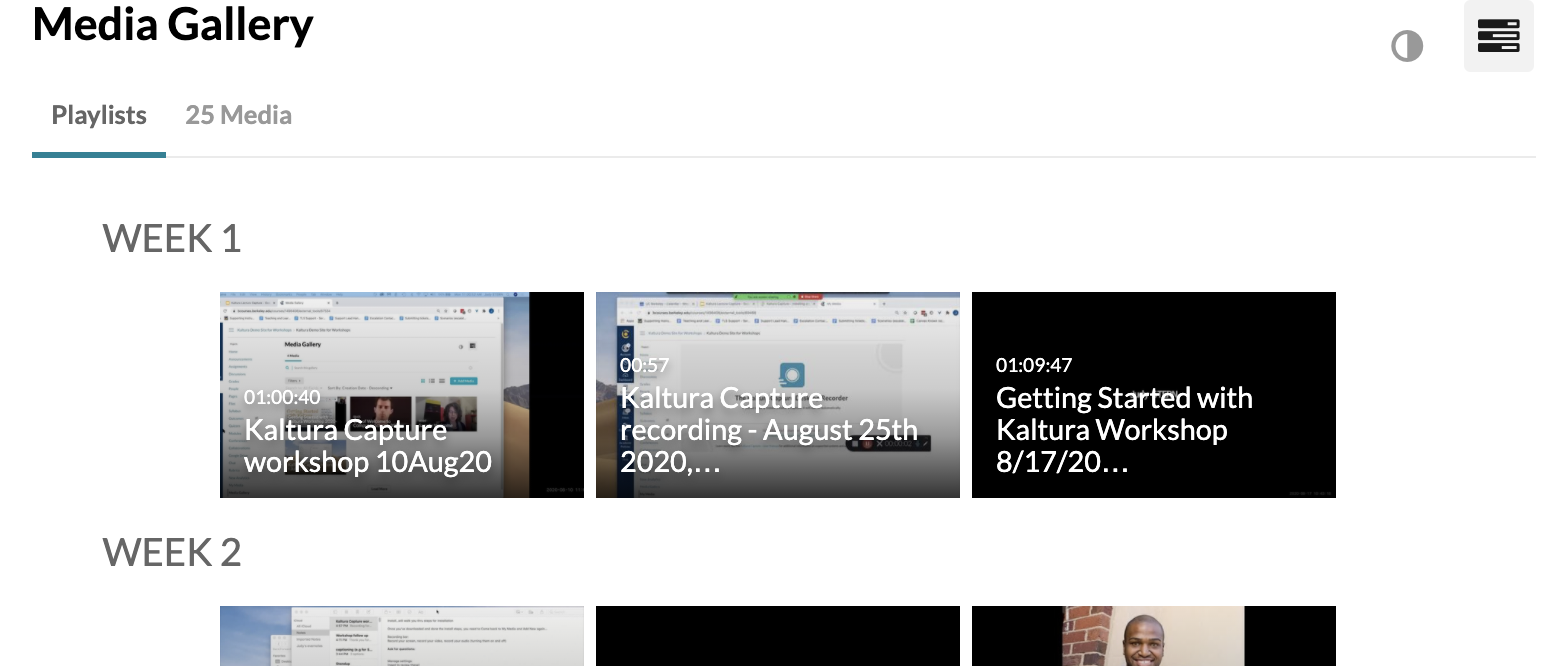
When any site member clicks on a playlist’s title, they are presented with a video player, similar to the normal Kaltura video player, but with all the videos in the playlist listed to the right of the active video. All the videos in the playlist will play sequentially.
Creating and managing playlists, as well as embedding them in bCourses course content (i.e. all the activities covered in the rest of this article) can only be done by those that have one of the following roles in the bCourses site: Teacher, Lead TA, TA, Designer, Owner, Maintainer. (For more info on bCourses roles, see What roles can I assign to users in my bCourses site, and what do each of them do?) These bCourses roles are recognized by Kaltura as “Media Gallery Manager” roles for that site’s Media Gallery.
The rest of this article covers the things that Media Gallery Managers can do. In many cases we send you to Kaltura documentation. Please be aware of the following when you go to Kaltura documentation:
- Whenever you see “KAF”, think “bCourses”.
- The button with a tool tip of “Channel Actions” at the top right of your Media Gallery is referred to inconsistently in Kaltura’s documentation: sometimes they call it “the hamburger menu”, and sometimes the “ACTIONS dropdown menu”. It looks like this:

How do I create a playlist in a Media Gallery and add items to it?
Starting at your Media Gallery, you can create a new playlist and add media to that playlist from either your My Media or from the site’s Media Gallery. Note that the same media can be added to multiple playlists.
For instructions, see Create and Add Media to a Playlist--From My Channels in KMS or Media Gallery in KAF. (Note that if you are following the steps under Option 1 of “ To add media to an existing playlist”, and you “Go to step 2 here”, your experience will be slightly different than what is documented: you will not see “Shared Content”; instead you will see “Media Gallery” as an option in the dropdown depicted.)
How do I change a playlist’s details and content?
You can modify a playlist’s details (name, description, tags) as well as reorder, add, and delete items in that playlist.
Follow the instructions in Edit Playlist Details under the heading “From My Channels Page in KMS or Media Gallery in KAF”. (Note: In step 2, ignore the sentence that starts with “For Channels…”; you are interested in the 2nd sentence, that starts with “For Media Galleries…”)
How do I delete a playlist in a Media Gallery?
For instructions, go to Delete a Playlist and scroll down to “To delete a KMS Channel Playlist and KAF Media Gallery Playlist”. (Note that Berkeley’s instance of Kaltura does not have all the options you will see in the screenshots.)
How do I embed a playlist using the Rich Content Editor?
The Rich Content Editor is the editor you’ll find throughout bCourses (e.g. when you create a Page, an Assignment, an Announcement, or in the Discussions tool).
Follow the instructions for embedding media in our KB article How Do I Embed Kaltura Media in bCourses Using the Rich Content Editor?
How do I add a playlist to a bCourses Module?
Follow the instructions in our KB article, How do I share Kaltura media in a bCourses Module?